
Staff Documents
Configuring Staff For Required Documents
Watch a training video on staff documents here
Under the Document Management area you would have seen "Staff Categories", where you define a list of types of staff members in your organization, along with a document schedule that would be required by them. You can then use this by editing each user's profiles and selecting the category from the "Staff Category (Document Schedule)" setting: 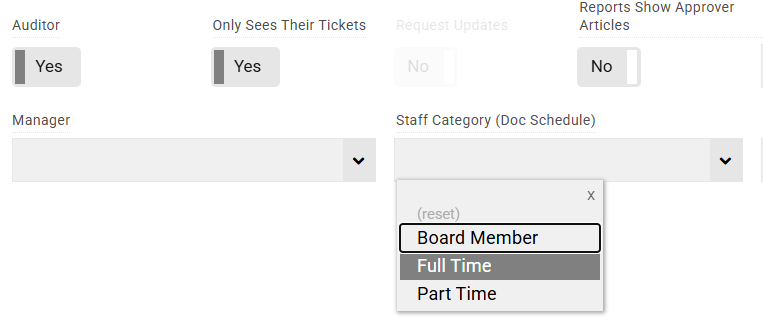
This will then add the required documents under the user.
Note: You must be a User Manager or admin to view other user records.
Before you set this up, you need to configure which user group will be managing all staff document requirements. This is set in the Configuration tab, under Main Settings / Staff Docs User Group Mgr. 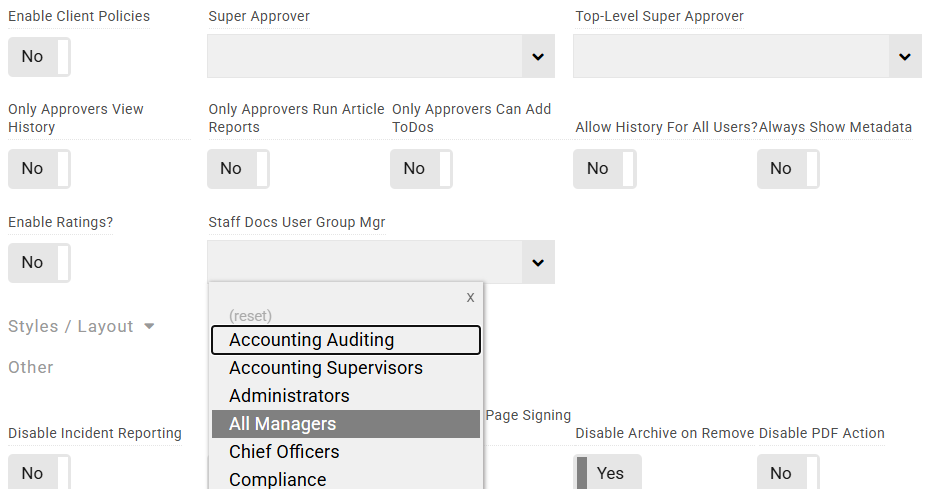
Once configured, all document requirements for each user will be assigned to both the user themselves and the selected user group. The user will be expected to make the submission, and the user group can ensure they get entered.
How Staff Submit Documents
Watch a training video for end-users on how to submit documents
When users log in, if they have a Staff Category set, they will see a Submit Document button. This will let them select which document they need to submit from the dropdown list, and then upload the file. If documents are pending, they will see a link at the top to take them directly to the list of outstanding documents, each highlighted in red. They can click one of those and then use the "Add Submission" button to submit that specific document. In both cases they can also optionally skip a submission, so long as they provide an explanation. 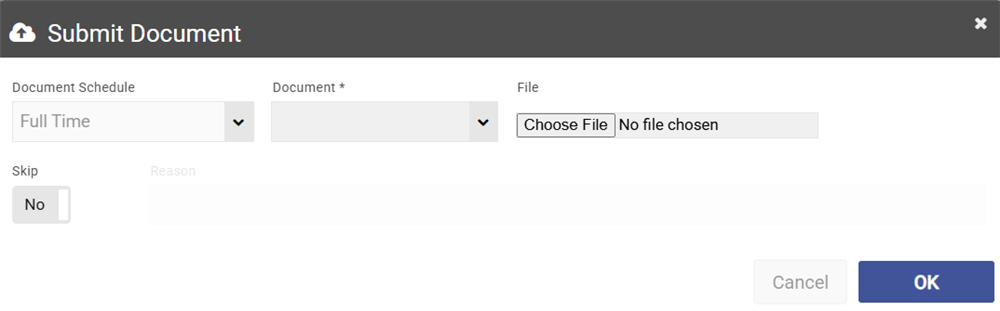
Once submitted, the due date will be updated to the next period. For users who are Wiki Managers, they will see the dates for upcoming submission requirements on their Dashboard calendar. Once they date comes about, they will receive an assignment email and the assignment will stay on their daily reminder digest email until processed.