
Adding Attachments
Documents, such as PDFs and Word documents, and various other files can be added to your articles 2 ways:
- Upload an attachment to the text editor using the cloud icon
- Drag & drop a file from file explorer into the text editor
Upload File Attachments
Files can be attached to articles using the 'Upload Attachment' button. This is found in the content toolbar, above the text editor space.
To do so, place the cursor in the desired location in the text editor and then select the cloud icon with the up arrow.
You will then be prompted to find a file or document on your system (or network) in the file browser to upload.
After selecting a file to open, it should now appear in your text editor as a rounded box with the title of the file.
Publish the page to make the file downloadable to your users.
Drag & Drop Files
Within File Explorer, choose a file, left click and hold on the file, and then drag over to you content editor. 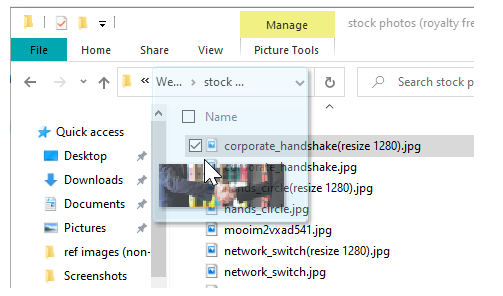
Wherever your mouse cursor is inside the content editor, that is where the file will be placed.
Once your left mouse button is released, the file will be dropped, uploaded, and will then display as a rounded box in the text editor with the title of the file.
Publish the page to make the file downloadable to your users.
Search
Note that certain file attachments, such as Microsoft Office files and PDFs that contain text, will have their text content extracted (as best as possible) and will be included in the search index so that when you search for text, it will point you to the article containing that attachment.